Starship terminal setup on Windows
This guide covers installing Starship on Windows, setting up Nerd Fonts, and integrating everything into Windows Terminal and VS Code with the OneDark theme.
Install a Nerd Font
Starship uses symbols that require a patched font. Install a Nerd Font of your choice (e.g. FiraCode Nerd Font or CaskaydiaCove Nerd Font):
- Download from nerdfonts.com
- Extract the archive, select all
.ttffiles, right-click → Install for all users
Alternatively, use winget:
1
winget install --id=Nerdfont.FiraCode -e
Or install via Chocolatey:
1
choco install nerd-fonts-firacode
Install Starship
Install Starship via winget:
1
winget install --id Starship.Starship
Or via Chocolatey:
1
choco install starship
Install PowerShell 7+
This guide targets PowerShell 7+ (cross-platform, pwsh.exe), not the legacy Windows PowerShell 5.1. Install it via winget:
1
winget install --id Microsoft.PowerShell -e
After installation, pwsh should be available in your PATH. Verify with:
1
pwsh --version
Configure your shell to use Starship
PowerShell 7+
Open your PowerShell 7 profile. Note that pwsh uses a separate profile path from Windows PowerShell 5.1:
1
pwsh -Command "if (!(Test-Path $PROFILE)) { New-Item -Path $PROFILE -Type File -Force }; notepad $PROFILE"
Add the following line to the profile:
1
Invoke-Expression (&starship init powershell)
CMD
For CMD integration, install Clink and add the following to a starship.lua file in your Clink scripts directory (clink info shows the path):
1
load(io.popen('starship init cmd'):read("*a"))()
Starship configuration
Starship is configured via ~/.config/starship.toml. Create the file if it doesn’t exist:
1
2
mkdir -Force ~/.config
New-Item -Path ~/.config/starship.toml -Type File
A minimal configuration to get started:
1
2
3
4
5
6
7
8
9
10
11
12
13
14
15
16
17
18
19
20
21
22
23
24
25
26
# ~/.config/starship.toml

format = """
$directory\
$git_branch\
$git_status\
$dotnet\
$nodejs\
$python\
$docker_context\
$line_break\
$character"""

[character]
success_symbol = "[❯](bold green)"
error_symbol = "[❯](bold red)"

[directory]
truncation_length = 5
truncation_symbol = "…/"

[git_branch]
symbol = " "

[git_status]
format = '([\[$all_status$ahead_behind\]]($style) )'
Browse the full configuration options at starship.rs/config.
You can also use one of the bundled presets:
1
starship preset nerd-font-symbols -o ~/.config/starship.toml
Windows Terminal – OneDark theme and Nerd Font
Open Windows Terminal settings (Ctrl+,) → Open JSON file, and add the OneDark color scheme to the schemes array:
1
2
3
4
5
6
7
8
9
10
11
12
13
14
15
16
17
18
19
20
21
22
23
{
    "name": "OneDark",
    "background": "#282C34",
    "foreground": "#ABB2BF",
    "cursorColor": "#528BFF",
    "selectionBackground": "#3E4451",
    "black": "#282C34",
    "red": "#E06C75",
    "green": "#98C379",
    "yellow": "#E5C07B",
    "blue": "#61AFEF",
    "purple": "#C678DD",
    "cyan": "#56B6C2",
    "white": "#ABB2BF",
    "brightBlack": "#5C6370",
    "brightRed": "#E06C75",
    "brightGreen": "#98C379",
    "brightYellow": "#E5C07B",
    "brightBlue": "#61AFEF",
    "brightPurple": "#C678DD",
    "brightCyan": "#56B6C2",
    "brightWhite": "#FFFFFF"
}
Then apply the scheme and Nerd Font to your profile in the profiles.defaults or a specific profile:
1
2
3
4
5
6
7
8
9
10
11
{
    "defaults": {
        "colorScheme": "OneDark",
        "font": {
            "face": "FiraCode Nerd Font",
            "size": 11
        },
        "opacity": 95,
        "useAcrylic": false
    }
}
Make sure PowerShell 7 is set as the default profile in Windows Terminal. Under profiles.list, ensure the pwsh.exe entry exists (it is usually auto-detected). Then set it as default via defaultProfile in the JSON root:
1
2
3
{
    "defaultProfile": "{GUID-of-PowerShell-7-profile}"
}
You can find the GUID in the profiles.list array for the entry named “PowerShell” with "source": "Windows.Terminal.PowershellCore". Alternatively, set this via the Terminal UI under Settings → Startup → Default profile.
VS Code – Starship integration with OneDark
Terminal font
In VS Code settings (Ctrl+,), configure the integrated terminal to use the Nerd Font. Add to your settings.json:
1
2
3
4
{
    "terminal.integrated.fontFamily": "'FiraCode Nerd Font', monospace",
    "terminal.integrated.fontSize": 14
}
This ensures Starship glyphs render correctly in the VS Code terminal.
OneDark theme
Install the One Dark Pro extension from the marketplace:
- Open Extensions (
Ctrl+Shift+X) - Search for One Dark Pro
- Click Install
- Set it as active:
Ctrl+K Ctrl+T→ select One Dark Pro
Terminal color scheme (OneDark)
To apply OneDark colors specifically to the integrated terminal, add to settings.json:
1
2
3
4
5
6
7
8
9
10
11
12
13
14
15
16
17
18
19
20
21
22
23
{
    "workbench.colorCustomizations": {
        "terminal.background": "#282C34",
        "terminal.foreground": "#ABB2BF",
        "terminalCursor.foreground": "#528BFF",
        "terminal.ansiBlack": "#282C34",
        "terminal.ansiRed": "#E06C75",
        "terminal.ansiGreen": "#98C379",
        "terminal.ansiYellow": "#E5C07B",
        "terminal.ansiBlue": "#61AFEF",
        "terminal.ansiMagenta": "#C678DD",
        "terminal.ansiCyan": "#56B6C2",
        "terminal.ansiWhite": "#ABB2BF",
        "terminal.ansiBrightBlack": "#5C6370",
        "terminal.ansiBrightRed": "#E06C75",
        "terminal.ansiBrightGreen": "#98C379",
        "terminal.ansiBrightYellow": "#E5C07B",
        "terminal.ansiBrightBlue": "#61AFEF",
        "terminal.ansiBrightMagenta": "#C678DD",
        "terminal.ansiBrightCyan": "#56B6C2",
        "terminal.ansiBrightWhite": "#FFFFFF"
    }
}
Note: If you’re using the One Dark Pro theme, the terminal colors are already included. The above is useful if you want to override or use a different editor theme while keeping OneDark in the terminal.
Default shell
Ensure VS Code uses PowerShell 7 as the default terminal profile so Starship initializes correctly. The profile name for pwsh is "PowerShell" (not "Windows PowerShell", which refers to the legacy 5.1):
1
2
3
{
    "terminal.integrated.defaultProfile.windows": "PowerShell"
}
Verify the correct shell is used by running $PSVersionTable.PSVersion in the VS Code terminal — it should show version 7.x or higher.
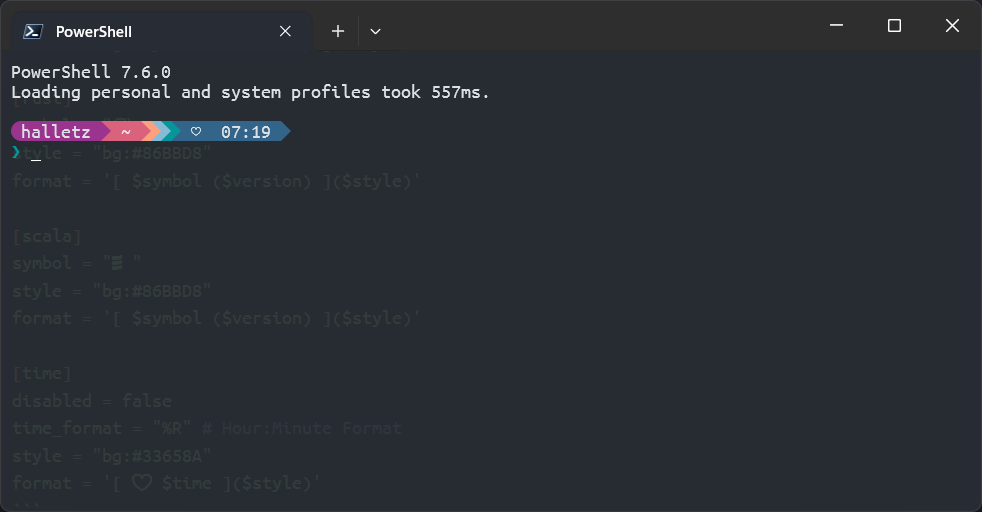
OneDark Preset
A preset that I currently use is based on the pastel-powerline preset, but with the linebreak after the prompt like in tokyo-night. I fixed the format ending of the prompt, tho.
File: ~\.config\starship.toml
1
2
3
4
5
6
7
8
9
10
11
12
13
14
15
16
17
18
19
20
21
22
23
24
25
26
27
28
29
30
31
32
33
34
35
36
37
38
39
40
41
42
43
44
45
46
47
48
49
50
51
52
53
54
55
56
57
58
59
60
61
62
63
64
65
66
67
68
69
70
71
72
73
74
75
76
77
78
79
80
81
82
83
84
85
86
87
88
89
90
91
92
93
94
95
96
97
98
99
100
101
102
103
104
105
106
107
108
109
110
111
112
113
114
115
116
117
118
119
120
121
122
123
124
125
126
127
128
129
130
131
132
133
134
135
136
137
138
139
140
141
142
143
144
145
146
147
148
149
150
151
152
153
154
155
156
157
158
159
"$schema" = 'https://starship.rs/config-schema.json'
command_timeout = 2000
format = """
[](#9A348E)\
$os\
$username\
[](bg:#DA627D fg:#9A348E)\
$directory\
[](fg:#DA627D bg:#FCA17D)\
$git_branch\
$git_status\
[](fg:#FCA17D bg:#86BBD8)\
$c\
$elixir\
$elm\
$golang\
$gradle\
$haskell\
$java\
$julia\
$nodejs\
$nim\
$rust\
$scala\
[](fg:#86BBD8 bg:#06969A)\
$docker_context\
[](fg:#06969A bg:#33658A)\
$time\
[ ](fg:#33658A)\
$line_break\
$character\
"""
[character]
success_symbol = "[❯](bold #06969A)"
error_symbol = "[❯](bold red)"
# Disable the blank line at the start of the prompt
# add_newline = false
# You can also replace your username with a neat symbol like or disable this
# and use the os module below
[username]
show_always = true
style_user = "bg:#9A348E"
style_root = "bg:#9A348E"
format = '[$user ]($style)'
disabled = false
# An alternative to the username module which displays a symbol that
# represents the current operating system
[os]
style = "bg:#9A348E"
disabled = true # Disabled by default
[directory]
style = "bg:#DA627D"
format = "[ $path ]($style)"
truncation_length = 3
truncation_symbol = "…/"
# Here is how you can shorten some long paths by text replacement
# similar to mapped_locations in Oh My Posh:
[directory.substitutions]
"Documents" = " "
"Downloads" = " "
"Music" = " "
"Pictures" = " "
# Keep in mind that the order matters. For example:
# "Important Documents" = " "
# will not be replaced, because "Documents" was already substituted before.
# So either put "Important Documents" before "Documents" or use the substituted version:
# "Important " = " "
[c]
symbol = " "
style = "bg:#86BBD8"
format = '[ $symbol ($version) ]($style)'
[cpp]
symbol = " "
style = "bg:#86BBD8"
format = '[ $symbol ($version) ]($style)'
[docker_context]
symbol = " "
style = "bg:#06969A"
format = '[ $symbol $context ]($style)'
[elixir]
symbol = " "
style = "bg:#86BBD8"
format = '[ $symbol ($version) ]($style)'
[elm]
symbol = " "
style = "bg:#86BBD8"
format = '[ $symbol ($version) ]($style)'
[git_branch]
symbol = ""
style = "bg:#FCA17D"
format = '[ $symbol $branch ]($style)'
[git_status]
style = "bg:#FCA17D"
format = '[$all_status$ahead_behind ]($style)'
[golang]
symbol = " "
style = "bg:#86BBD8"
format = '[ $symbol ($version) ]($style)'
[gradle]
style = "bg:#86BBD8"
format = '[ $symbol ($version) ]($style)'
[haskell]
symbol = " "
style = "bg:#86BBD8"
format = '[ $symbol ($version) ]($style)'
[java]
symbol = " "
style = "bg:#86BBD8"
format = '[ $symbol ($version) ]($style)'
[julia]
symbol = " "
style = "bg:#86BBD8"
format = '[ $symbol ($version) ]($style)'
[nodejs]
symbol = ""
style = "bg:#86BBD8"
format = '[ $symbol ($version) ]($style)'
[nim]
symbol = " "
style = "bg:#86BBD8"
format = '[ $symbol ($version) ]($style)'
[rust]
symbol = ""
style = "bg:#86BBD8"
format = '[ $symbol ($version) ]($style)'
[scala]
symbol = " "
style = "bg:#86BBD8"
format = '[ $symbol ($version) ]($style)'
[time]
disabled = false
time_format = "%R" # Hour:Minute Format
style = "bg:#33658A"
format = '[ ♥ $time ]($style)'
 )
)