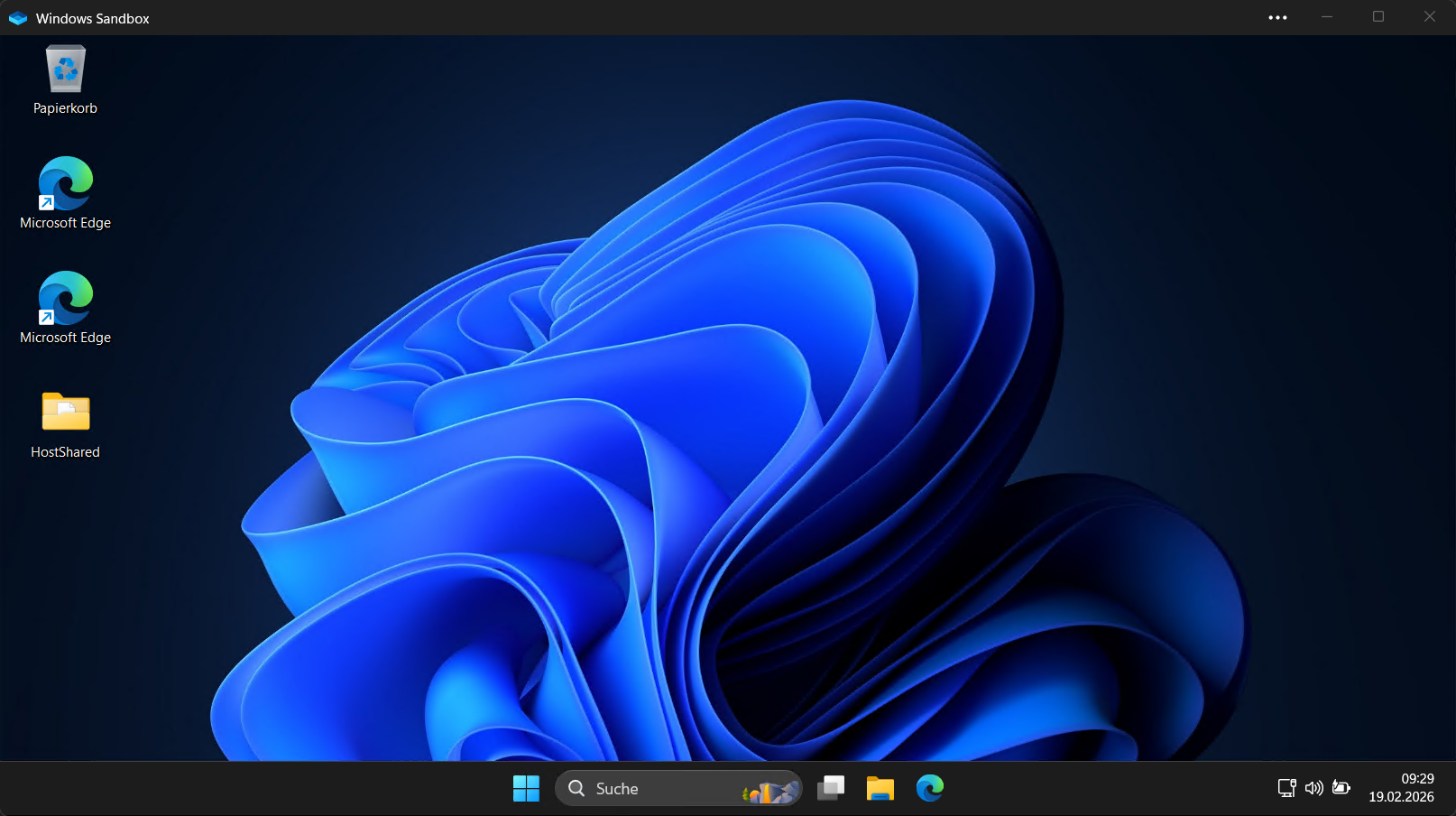
Windows 11 - Sandbox
Windows 11 offers a Sandbox to try out installations and Software in a isolated virtual environment. The Sandbox starts in a fresh and untouched state and resets every time on shutdown. Nothing is stored within it, so it is perfect to test and try software within it without harming your native OS.
You can set up a link to start your Sandbox and configure some settings that get applied on startup to it:
MyDefaultSandbox.wsb
1
2
3
4
5
6
7
8
9
10
11
12
13
14
15
16
17
18
19
20
21
22
23
24
25
26
27
28
29
30
31
32
33
34
35
36
37
38
39
40
41
42
43
<Configuration>

	<!-- Basic Options -->
	<Networking>Enable</Networking> <!-- Enable or Disable network access -->
	<!-- <MemoryInMB>12288</MemoryInMB> Adjust allocated memory as desired. Default is only 4GB -->
	<ClipboardRedirection>Enable</ClipboardRedirection>  <!--  Enables or disables sharing clipboard between host & sandbox. Disable if security is paramount. -->

	<!-- Security Hardens the sandbox. The docs say this may affect ability to copy and paste, but that still seems to work. So I keep it enabled. -->
	<ProtectedClient>Enable</ProtectedClient>

	<!-- Options for improved security -->
	<VideoInput>Disable</VideoInput>
	<AudioInput>Disable</AudioInput>
	<PrinterRedirection>Disable</PrinterRedirection>
	<vGPU>Disable</vGPU>


	<!--  Map a folder on your main system to appear within the sandbox  -->
	<MappedFolders>
		<!-- Desktop "HostShared" Folder. Put startup script and other useful scripts into. -->
		<MappedFolder>
		  <HostFolder>C:\Solutions\Development\WinSandBox\Startup Scripts</HostFolder> <!-- Update the HostFolder path to the one on your real computer that will be shared with the Sandbox -->
		  <SandboxFolder>C:\Users\WDAGUtilityAccount\Desktop\HostShared</SandboxFolder> <!-- Don't change this, the startup script uses hardcoded paths -->
		  <ReadOnly>true</ReadOnly> <!-- If Readonly is True, the sandbox can't change anything the folder (recommended) -->
		</MappedFolder>
	</MappedFolders>

	<!-- Run the powershell script from the mapped folder -->
	<LogonCommand>
		<!-- The seemingly redundant command nesting makes it so the powershell window is visible when running. -->
		<Command>powershell -executionpolicy Bypass -command "start powershell {-file C:\Users\WDAGUtilityAccount\Desktop\HostShared\SandboxStartup.ps1 -launchingSandbox}"</Command>
		<Command>powershell -executionpolicy Bypass -command "start powershell {-file \"C:\Users\WDAGUtilityAccount\Desktop\HostShared\Set Theme Dark Mode.ps1\"}"</Command>
	</LogonCommand>

</Configuration>

<!-- Other Settings Examples
	- See: https://learn.microsoft.com/en-us/windows/security/application-security/application-isolation/windows-sandbox/windows-sandbox-configure-using-wsb-file
	- Note: Anything outside <configuration> tags don't apply

	Other Notes:
		- It seems you can include multiple <command> entries within LogonCommand
-->
Save this xml as .wsb file and start your pre configured Sandbox with it.